


Banking Details and Invoices
This add-on is part of our Subscription plan.
Subscribe once — enjoy all add-ons without limits.
Banking Details and Invoices helps stores accept orders from legal entities, sole proprietors, individuals, and self-employed customers: collect the required details, automatically fill in organization data through DaData, and generate invoices for payment.
What it is for
The add-on simplifies working with customers and vendors who need to provide their details during registration or checkout. The administrator can define the field set for each payer type, choose where the fields appear, and make selected fields required.
Customers can save organizations in their profiles and select them for repeat orders without entering the same information again.
Key features
- Separate sets of details for legal entities, sole proprietors, individuals, and self-employed customers.
- Control over which fields appear during registration, checkout, and invoice generation.
- Required-field settings for each payer type.
- Automatic organization data entry by TIN or company name through DaData.
- Details displayed in customer and vendor profiles and during checkout.
- Creation, saving, editing, and selection of organizations in the “My organizations” section.
- Invoice generation with customer and vendor details.
- Invoice printing, PDF download, and email delivery.
- Key organization details displayed in the order list and order details.
How it works
The administrator enters a DaData API key, selects the available payer types, and configures the requisite fields. For each field, the administrator can choose where it appears, whether it is required, and whether it must be included in the invoice.
To issue invoices, the administrator creates the “MS: Issue an invoice” payment method and enters the recipient's details. During checkout, the customer can enter data manually, select a saved organization, or use DaData suggestions. After the order is placed, the invoice can be opened for printing, downloaded as a PDF, or emailed to the customer.
Have questions about the add-on?
- Store Builder
- Store Builder Ultimate
- Multi-Vendor
- Multi-Vendor Plus
- Multi-Vendor Ultimate
- Buyers
- Owners
- English
- Русский
- 4.21.X
- 4.20
- 4.19.X
- 4.18.X
- 4.17.X
- 4.16.X
- 4.15.X
- 4.14.X
- 4.13.X
- 4.12.X
Instructions for Banking Details and Invoices
What the add-on does
The add-on collects customer or vendor requisites, saves organization details in the order, and generates an invoice for payment. It supports four counterparty types: legal entity, sole proprietor, individual, and self-employed customer.
Legal entities and sole proprietors can use DaData suggestions by TIN or company name. The invoice can be printed, downloaded as a PDF, and sent to the customer by email.
Where to find the add-on
- Add-ons → Manage add-ons → Banking Details and Invoices — general settings, invoice options, and field sets for each counterparty type.
- Administration → Payment methods — the payment method that uses the MS: Issue an invoice processor, recipient requisites, and stamp image.
- Orders → View orders — requisites in the order list and order details, plus actions for sending, printing, and downloading an invoice.
- My organizations in the customer account — saved organizations, when this option is enabled in the add-on settings.
Add-on settings
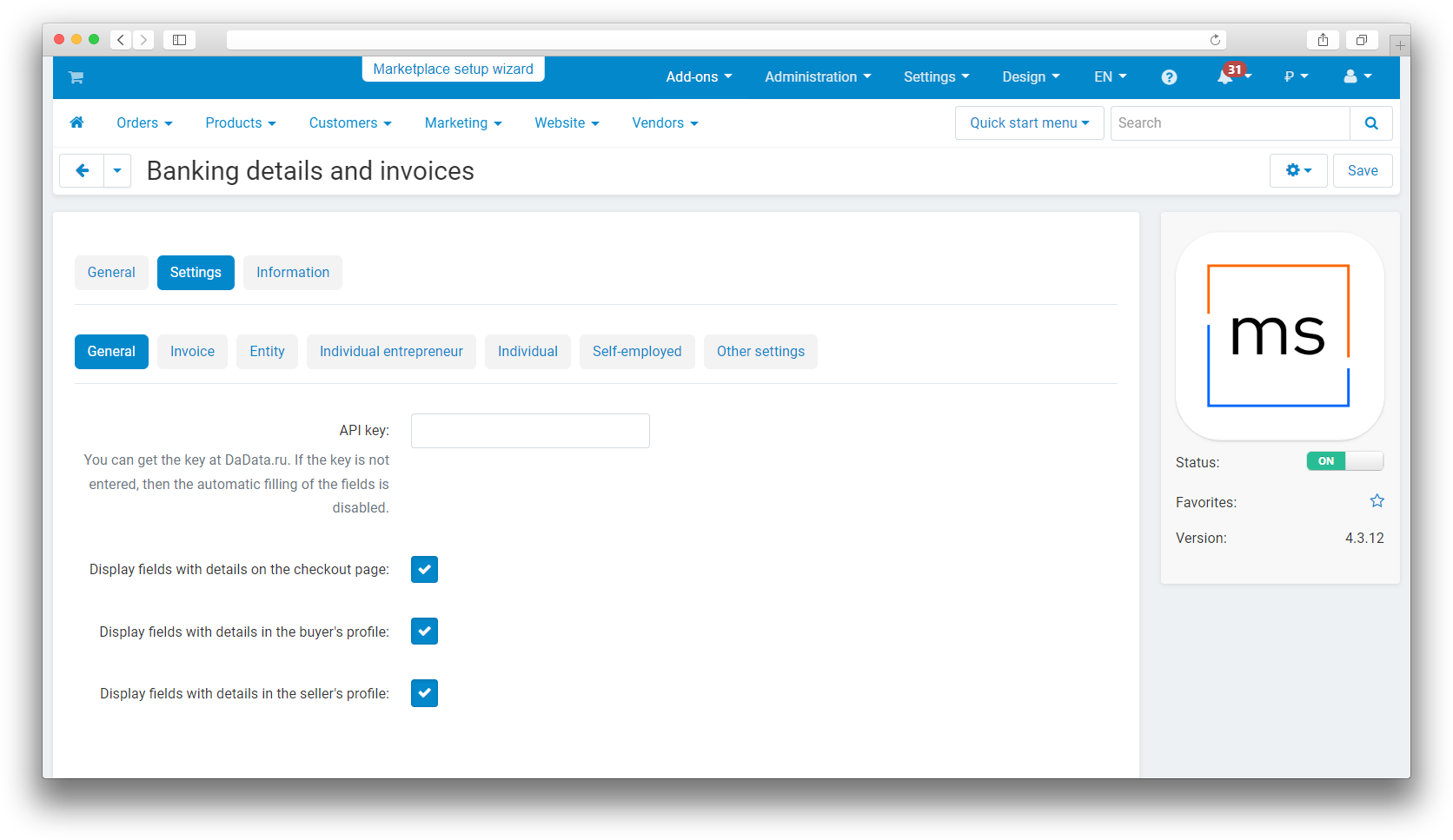
General section
- API key — the DaData API key used for suggestions and automatic filling by TIN or company name. If the key is empty, the fields remain available for manual entry.
- Display fields with details on the checkout page — shows the requisite fields at checkout.
- Display fields with details in the buyer's profile — adds requisites to the customer profile.
- Display fields with details in the seller's profile — adds requisites to the vendor profile in Multi-Vendor.
- Automatically fill in user fields — inserts previously entered customer requisites at checkout.
- Establishment and maintenance of organizations in the profile — adds the My organizations section, lets customers select a saved organization at checkout, and allows entered requisites to be saved. This section is available to signed-in customers.
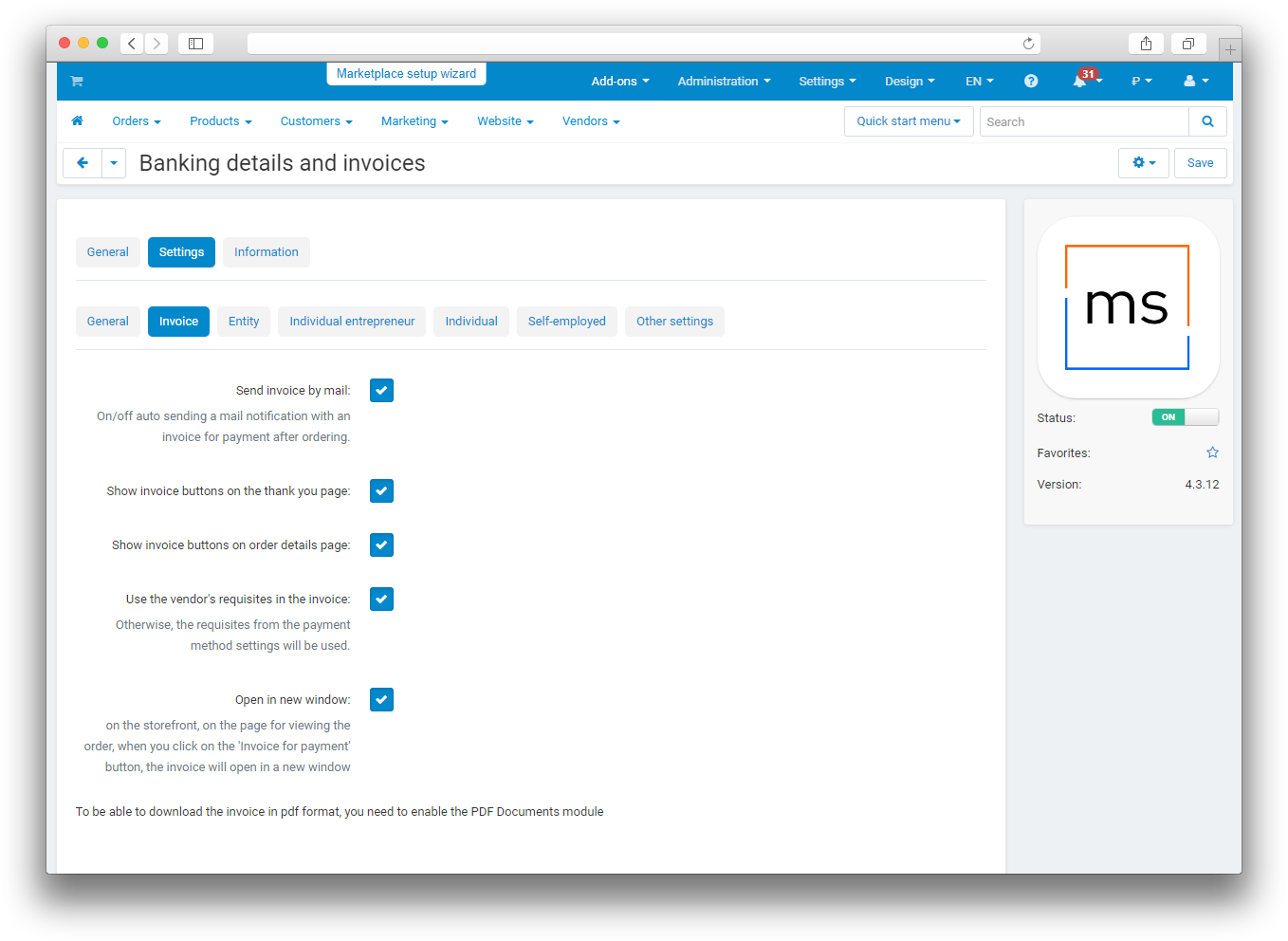
Invoice section
- Send invoice by mail — automatically sends an invoice when the order receives status O. The message is sent to the email address stored in the order and contains a PDF attachment.
- Show invoice buttons on the thank you page — shows print and PDF download actions immediately after order placement.
- Show invoice buttons on order details page — shows the same actions in the customer's order details.
- Open in new window — opens the printable invoice in a new browser tab from the storefront order details page.
Browser printing is available without an additional add-on. PDF generation and automatic PDF attachments require the PDF Documents add-on to be operational.
Fields for counterparty types
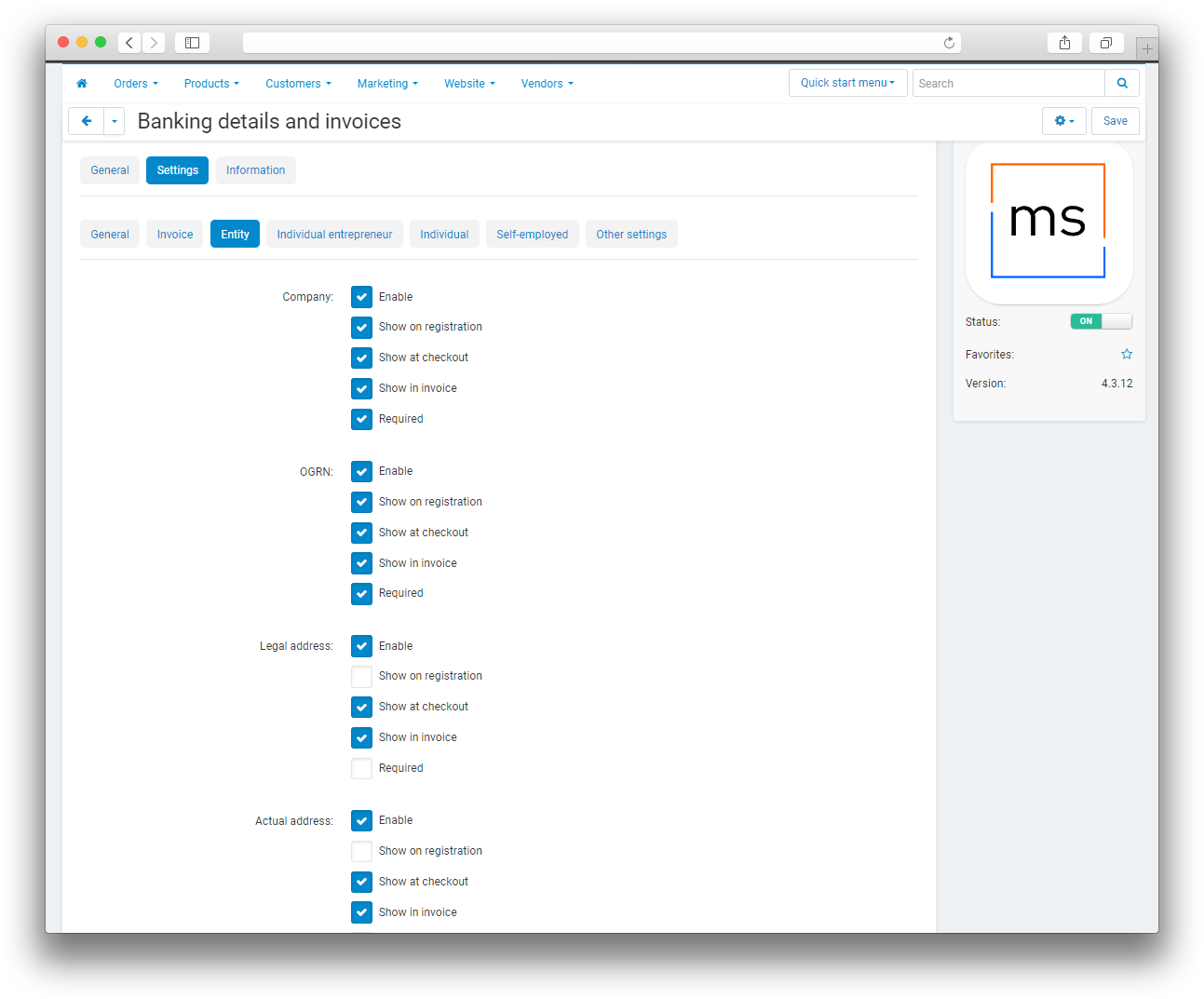
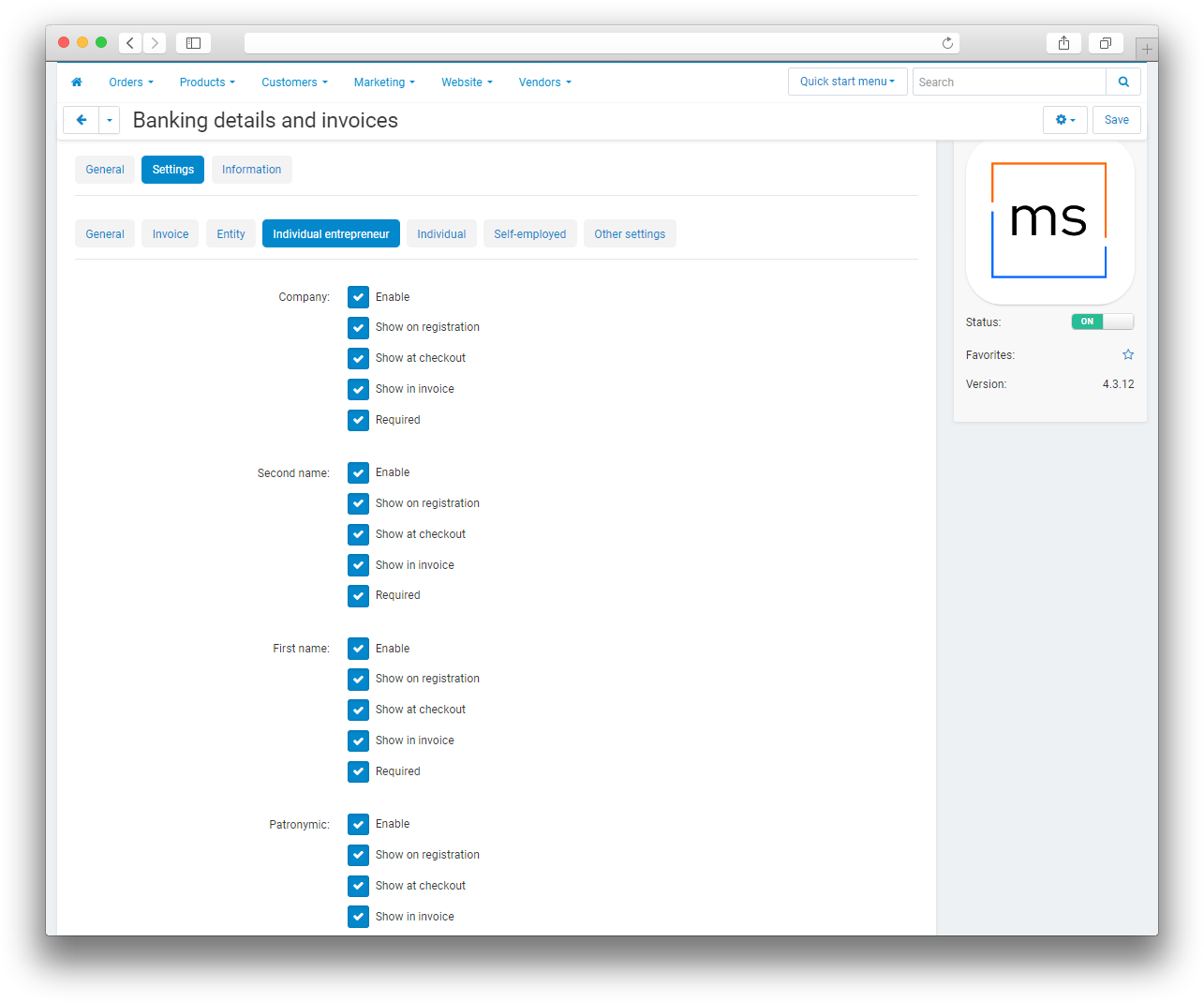
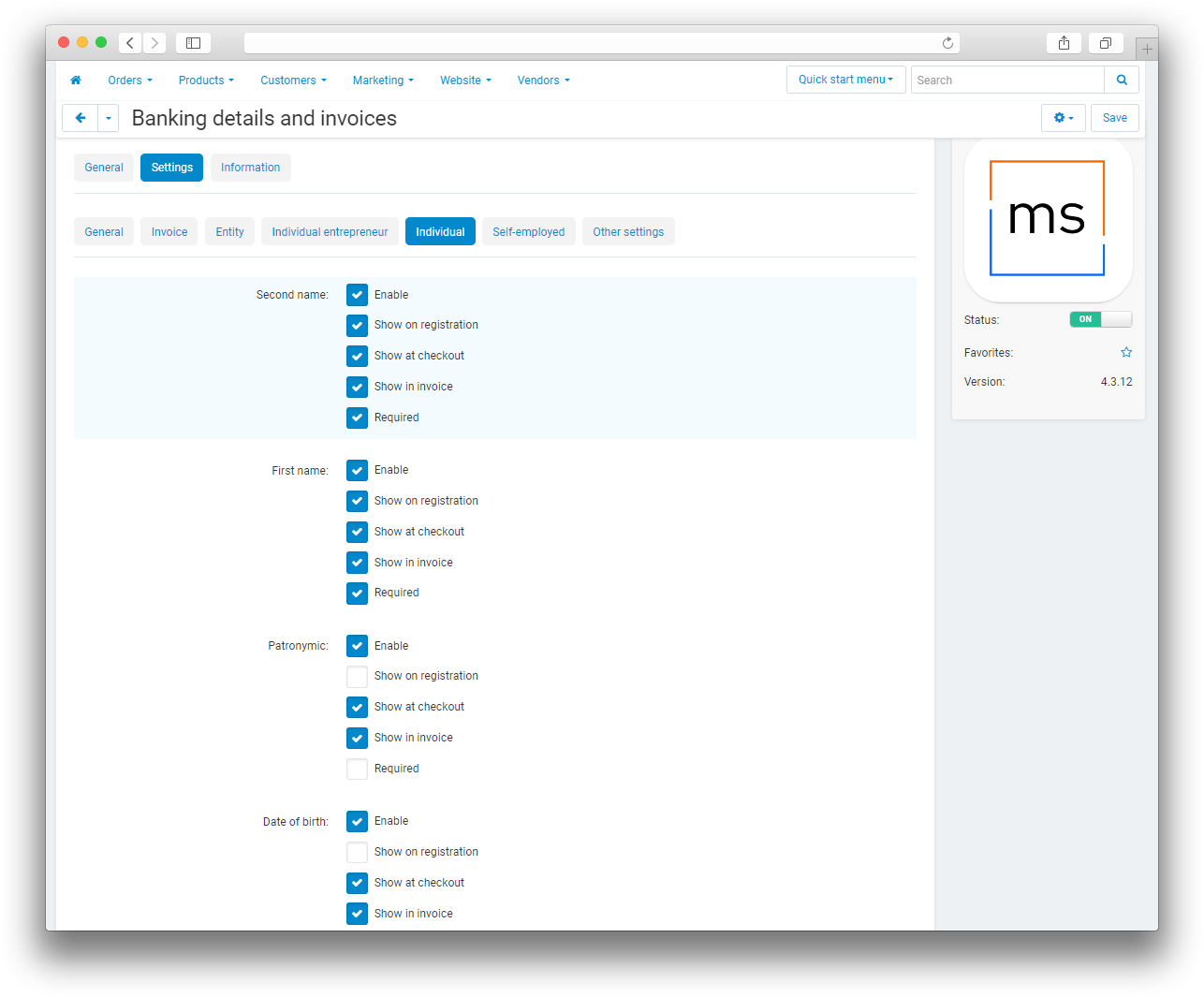
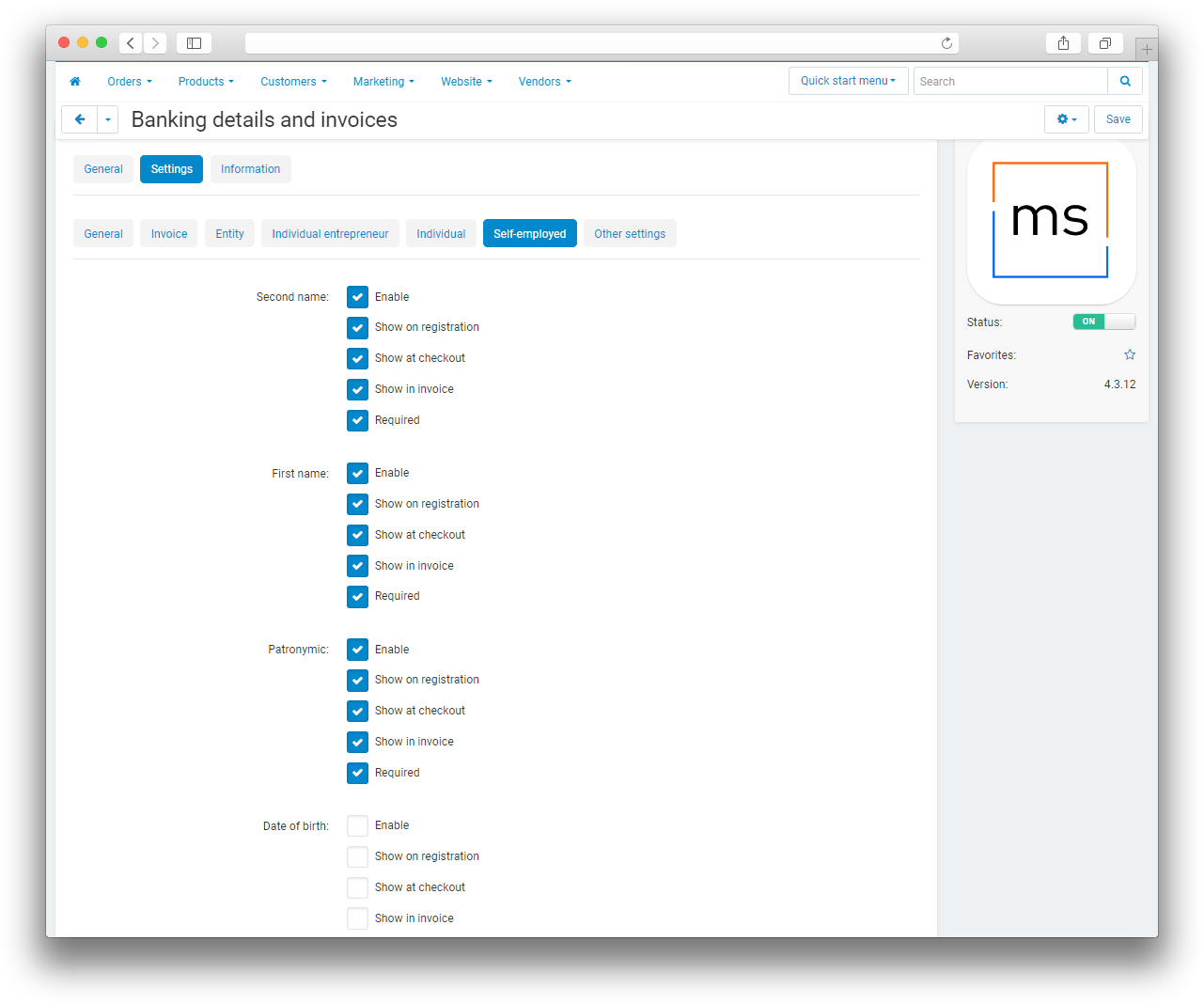
Separate setting sections are provided for legal entities, sole proprietors, individuals, and self-employed customers. They control company name, personal name, TIN, OGRN or OGRNIP, KPP, addresses, bank details, passport and registration data, phone, and email. The available fields differ by counterparty type.
Each field has the following options:
- Use — enables the field for the selected counterparty type.
- Show at registration — shows the field in the registration or profile form where the add-on adds requisites.
- Show at checkout — requests the field in the checkout requisite block.
- Show in invoice — includes the completed value in the customer or recipient details on the invoice.
- Required — prevents the corresponding form from being submitted without a value.
Make a field required only when it is also shown in the relevant form. After changing field sets, test every counterparty type used by the store.
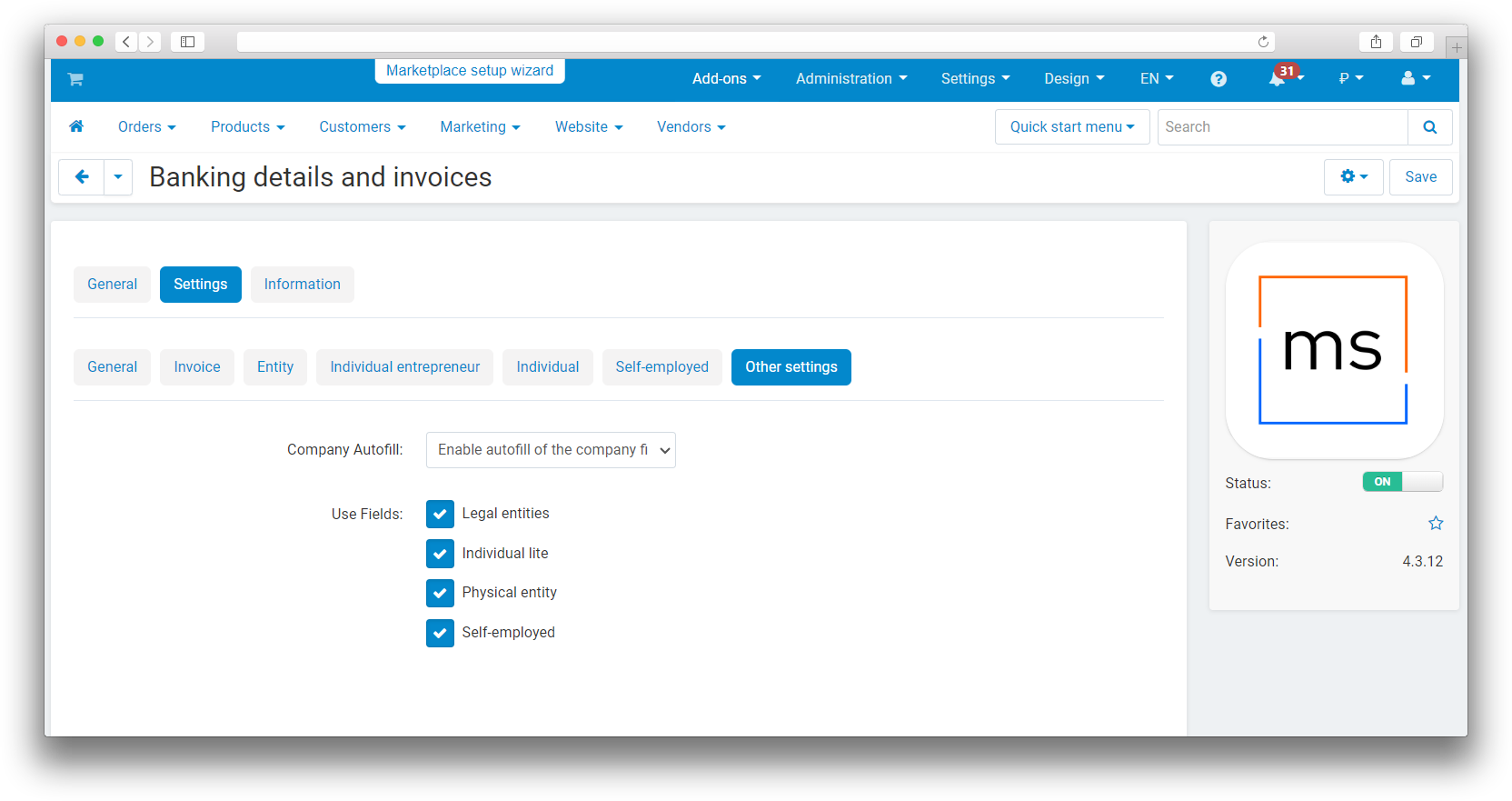
Other settings section
- Automatic company name filling — when a vendor registers, copies either the person's full name or the legal entity name to the standard Company field. Select Do not use to disable copying.
- Use fields — controls which counterparty types are available in the selector: legal entities, sole proprietors, individuals, and self-employed customers.
- Display organization requisites in orders — shows a compact block with company name, TIN, phone, and email in the order list and order details.
Payment method and recipient requisites
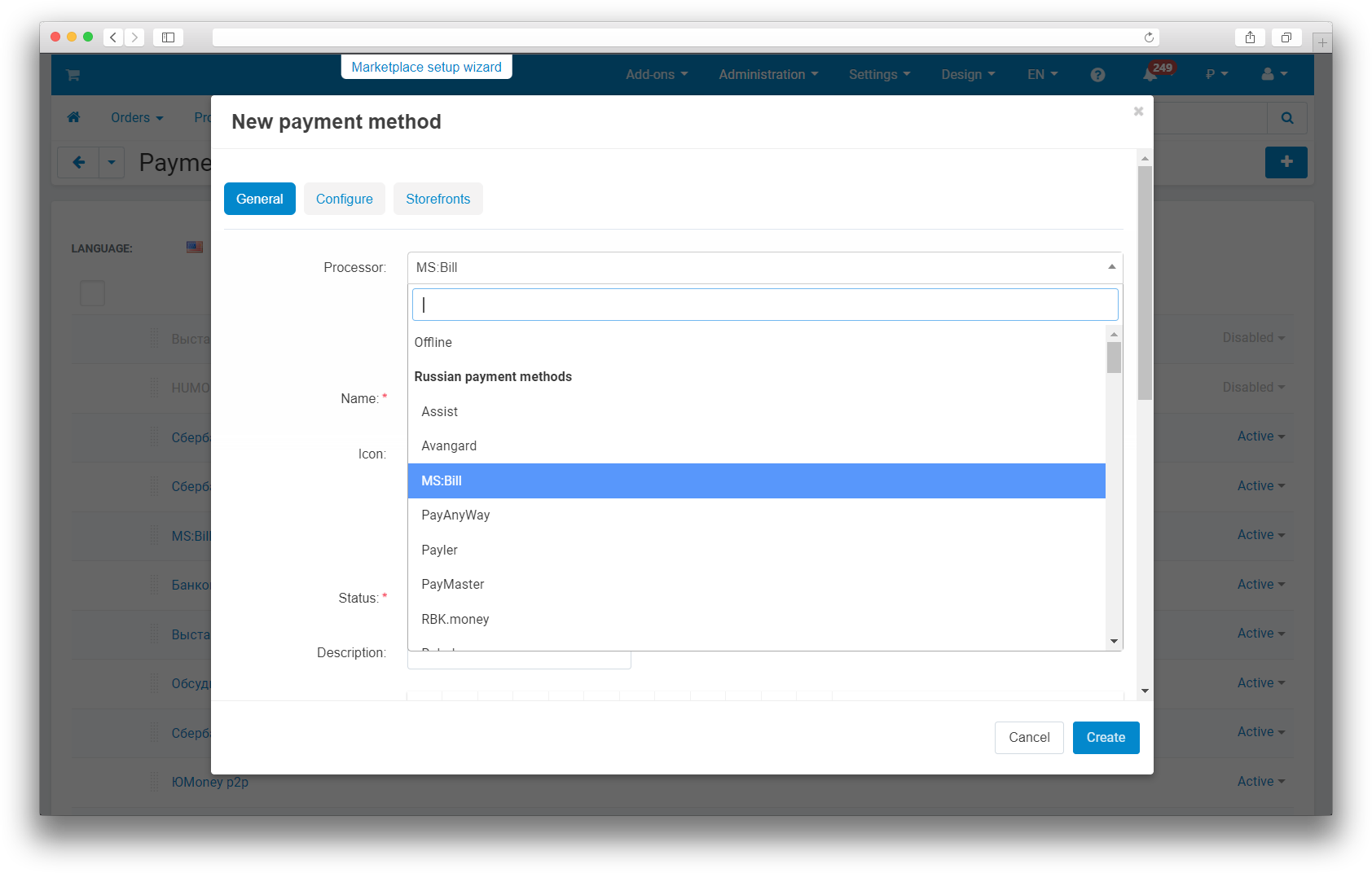
- Open Administration → Payment methods and create or edit the payment method used for invoicing.
- On the processor settings tab, select MS: Issue an invoice.
- Enter the recipient's counterparty type, name, TIN, registration and bank details, address, director, and chief accountant. The invoice includes completed fields that are allowed by the Show in invoice option for the corresponding counterparty type.
- If needed, upload a stamp image and set its size and position.
- Save the payment method and make sure it is available to the required storefronts and user groups.
The recipient name, TIN, checking account, bank name, BIK, and correspondent account are especially important for the invoice. Before using the payment method, check the printable form: it includes recipient requisites, customer requisites, ordered products, shipping, taxes, and the total.
Stamp image parameters
- Stamp image — the image placed next to the director and chief accountant signatures on the invoice.
- Stamp image width (
image_stamp_width) — image width in pixels. The default value is 120. - Stamp image height (
image_stamp_height) — image height in pixels. The default value is 120. - Left position for stamp image (
image_stamp_left) — horizontal image offset in pixels. The default value is 130; increasing it moves the stamp to the right. - Top position for stamp image (
image_stamp_top) — vertical image offset in pixels. The default value is -20; a negative value moves the stamp upward.
After changing the size or offsets, check both the printable version and the PDF because browser printing and PDF rendering may differ slightly.
Checkout flow
- The customer chooses to place the order as an organization and selects a counterparty type.
- The customer selects a saved organization or enters requisites manually. When a DaData API key is configured, supported fields can be filled from suggestions by TIN or company name.
- After the customer selects MS: Issue an invoice and places the order, the add-on saves the requisites in the order and assigns status O.
- The customer prints or downloads the invoice from an available order page. If automatic sending is enabled, the PDF invoice is also emailed to the address stored in the order.
Statuses, payment confirmation, and payment-flow limitations
MS: Issue an invoice generates an invoice; it is not a bank or payment gateway integration and does not send a payment request to an external service.
- Order status: the processor assigns status O when the order is placed. The add-on does not check whether funds reached the bank account, so an administrator must update the order status manually or through another integration after payment.
- Test mode: not available because the add-on does not connect to a payment gateway. Test it by placing an order and reviewing the generated invoice.
- Hold, capture, and void: not supported. The add-on neither authorizes nor captures funds.
- Receipts, fiscalization, and DigitalKassa: the add-on generates a payment invoice, not a fiscal receipt or online cash-register data. It has no dedicated fiscalization settings.
Merchant ID
The add-on has no Merchant ID or merchant_id setting: a merchant identifier is not required because the add-on does not create a payment in an external gateway. A payment service Client ID and API token are not required either. The API key setting belongs only to DaData and is used for requisite suggestions; it does not participate in issuing or confirming a payment.
Webhook
No webhook is configured for this add-on. The payment method has no webhook URL or callback URL field, and the processor is declared without callback handling, so it does not accept bank notifications. An external service therefore cannot use this add-on to confirm payment or update the order status automatically: receipt of funds and the resulting status must be checked and recorded manually or by a separate integration.
Refunds
The add-on does not create refund operations or send refund requests to a bank; the order details and payment method settings provide no such action. Refund a bank transfer outside the add-on according to the store's and bank's procedures. After the refund, an administrator must manually align the order status and order data in CS-Cart with the actual transaction.
Invoice actions in the administration panel
The following actions are available in the details of an order placed with the MS: Issue an invoice processor:
- Send — generates a PDF and sends it to the email address stored in the order.
- Invoice for payment — opens the printable invoice.
- Invoice for payment (PDF) — generates and downloads the PDF.
These actions do not generate this add-on's invoice for an order placed with another payment method.
How to check the result
- Leave only the required counterparty types and fields enabled at checkout; define clear requirements for fields made mandatory during testing.
- If DaData suggestions are needed, enter the API key and test a search by TIN or company name. Repeat the test without a suggestion to verify that manual entry remains available.
- Configure a payment method with the MS: Issue an invoice processor, fill in the recipient requisites, and upload a stamp image.
- Place a test order for every counterparty type used by the store. Check required fields, organization saving, and reuse from My organizations.
- Make sure the order received status O and that the customer requisites are visible in the order details.
- Compare the printable version and PDF. Requisites of both parties, products, shipping, taxes, total, and stamp must be displayed correctly.
- Test manual and automatic invoice sending to a real test email address. If PDF generation fails, first check that the PDF Documents add-on is available.
- After simulating payment, verify that the order status does not change automatically. Manual payment confirmation is expected for this processor.
Changelog
v4.4.3 from 10.09.2026
[*] Updated the add-on code, templates, and integration files.
[*] Updated the add-on description, instructions, and changelog.
v4.4.2 from 2026-03-17
[*] The add-on template was updated.
v4.4.1 from 2026-01-30
[*] A short name and tooltip were added for the "Display organization details in orders" setting.
[!] Fixed an error that occurred when vendor details were enabled.
[+] Added a separate "Bank details" section.
v4.4.0 from 2025-09-02
[+] Added a separate organization selection block at checkout.
[+] Added email and phone fields for all counterparty types.
[+] Added saving of organizations entered manually at checkout.
[*] Improved the block display by adding CSS styles and changing the HTML structure.
[!] Fixed field population when the selected organization's data contains an apostrophe.
[!] Fixed an error on the checkout page for unauthenticated users.
[!] Fixed the variable used when placing an order as a legal entity.
[!] Fixed the selection of organization details in the user profile.
[+] Added organization details to orders.
[-] Removed duplicate payment method information when checking out as a legal entity.
[!] Restored organizations of the "Self-employed" type on the "My organizations" page.
[+] Added retrieval of organization suggestions through the dadata.ru API.
[!] Fixed saving organizations of the "Individual" and "Self-employed" types.
[!] Fixed a JavaScript error.
v4.3.17 from 2024-07-24
[!] Fixed errors found during testing.
v4.3.16 from 2024-07-08
[!] Fixed language variables.
v4.3.15 from 2024-03-27
[!] Fixed duplicate AJAX requests when selecting a shipping method.
v4.3.14 from 2023-12-22
[!] Fixed field autofill on the order details page and during repeat payment.
v4.3.13 from 2023-11-02
[!] Fixed invoice sending when the status changed for an order paid using another payment method.
[!] Fixed company details in invoices.
[+] Added a setting to disable automatic payment field population on the checkout page.
v4.3.12 from 2023-09-30
[*] Changed the English add-on name.
[*] Moved the processor name to a language variable.
[+] Added TIN field settings for individuals and self-employed persons.
[*] Changed default settings for individuals, self-employed persons, legal entities, and sole proprietors.
v4.3.11 from 2023-08-25
[*] Moved the "MS: Issue invoice" processor from "Payment systems" to "Russian payment methods".
[+] Added the "Open in a new window" setting and information about the "PDF documents" add-on to the "Invoice" tab.
[*] Updated the company logo.
[*] Updated the add-on icon.
[*] Changed language variables.
[+] Standardized the add-on.
[*] Replaced short PHP tags with the full v4.3.10 from 2023-06-13.
[+] Added a check for the "PDF documents" add-on when the "Send invoice by email" setting is enabled.
v4.3.9 from 2023-04-12
[+] Added fields for self-employed persons.
[*] Changed the default fields for sole proprietors.
v4.3.8 from 2023-03-31
[*] Updated the add-on icon.
v4.3.7 from 2022-12-26
[+] Standardized the add-on.
v4.3.6 from 2022-12-20
[*] Changed the add-on settings.
v4.3.5 from 2022-10-09
[+] Standardized the add-on.
v4.3.4 from 2022-06-10
[*] Made the TIN field optional for individuals.
[*] Disabled autofill for individuals.
v4.3.3 from 2022-06-09
[+] Added conversion of an amount to words.
v4.2.3 from 2022-06-09
[+] Added the "Field of activity" field for legal entities.
v4.2.2 from 2022-06-03
[+] Added TIN display in invoices.
v4.2.1 from 2022-06-02
[+] Added a setting to hide the counterparty type in the selector.
v4.2.0 from 2022-01-12
[+] Added a setting to autofill the company field from another field.
v4.1.0 from 2021-09-02
[+] Added payment information to order details in the administration panel.
[!] Fixed DaData initialization when another payment method was selected while the checkout page was loading.
[!] Fixed DaData popup styles on the checkout page.
v4.0.4 from 2021-08-28
[+] Added payment method settings for stamp positioning in invoices.
[!] Fixed stamp display in invoices in CS-Cart.
v4.0.3 from 2021-08-26
[!] Fixed an error when editing an order.
v4.0.2 from 2021-08-25
[+] Added support for CS-Cart 4.13.2.
v4.0.1 from 2021-08-24
[!] Fixed date field display.
[!] Fixed date saving in payment method settings.
v4.0.0 from 2021-08-23
[+] Adapted the add-on for CS-Cart as well as Multi-Vendor.
[+] Added a checkout form and related settings.
[+] Added a setting to hide data in invoices.
[+] Added invoice buttons to the order completion page.
[+] Added invoice button display settings.
[+] Restored full-name fields for sole proprietors and individuals.
[*] Changed the add-on SKU.
[*] Changed language variables.
[!] Fixed date fields.
[!] Fixed invoice buttons being displayed for another payment method in order details.
[!] Fixed required field display after changing the counterparty type.
v3.1.1 from 2021-08-04
[-] Removed full-name fields for sole proprietors and individuals.
[!] Fixed required field display after changing the counterparty type.
v3.1.0 from 2021-08-03
[+] Added full-name fields for sole proprietors.
[+] Added additional fields for individuals.
[!] Fixed styles for date fields.
v3.0.0 from 2021-07-01
[+] Added a new counterparty type: "Individual".
[+] Added field display settings.
[+] Added a setting to enable and disable customer details fields.
[+] Added English localization.
v2.0.0 from 2021-04-24
[+] Added a payment method for issuing invoices using data collected by the add-on.
[*] Changed the add-on SKU.
v1.0.0 from 2021-04-24
[+] Initial release.
Legend:
[+] Added
[-] Removed
[*] Changed
[!] Bug fixed
Here you can share your opinion and evaluate our work.
Your feedback helps us become better and offer you even better service.