


Account menu on a single page
This add-on is part of our Subscription plan.
Subscribe once — enjoy all add-ons without limits.
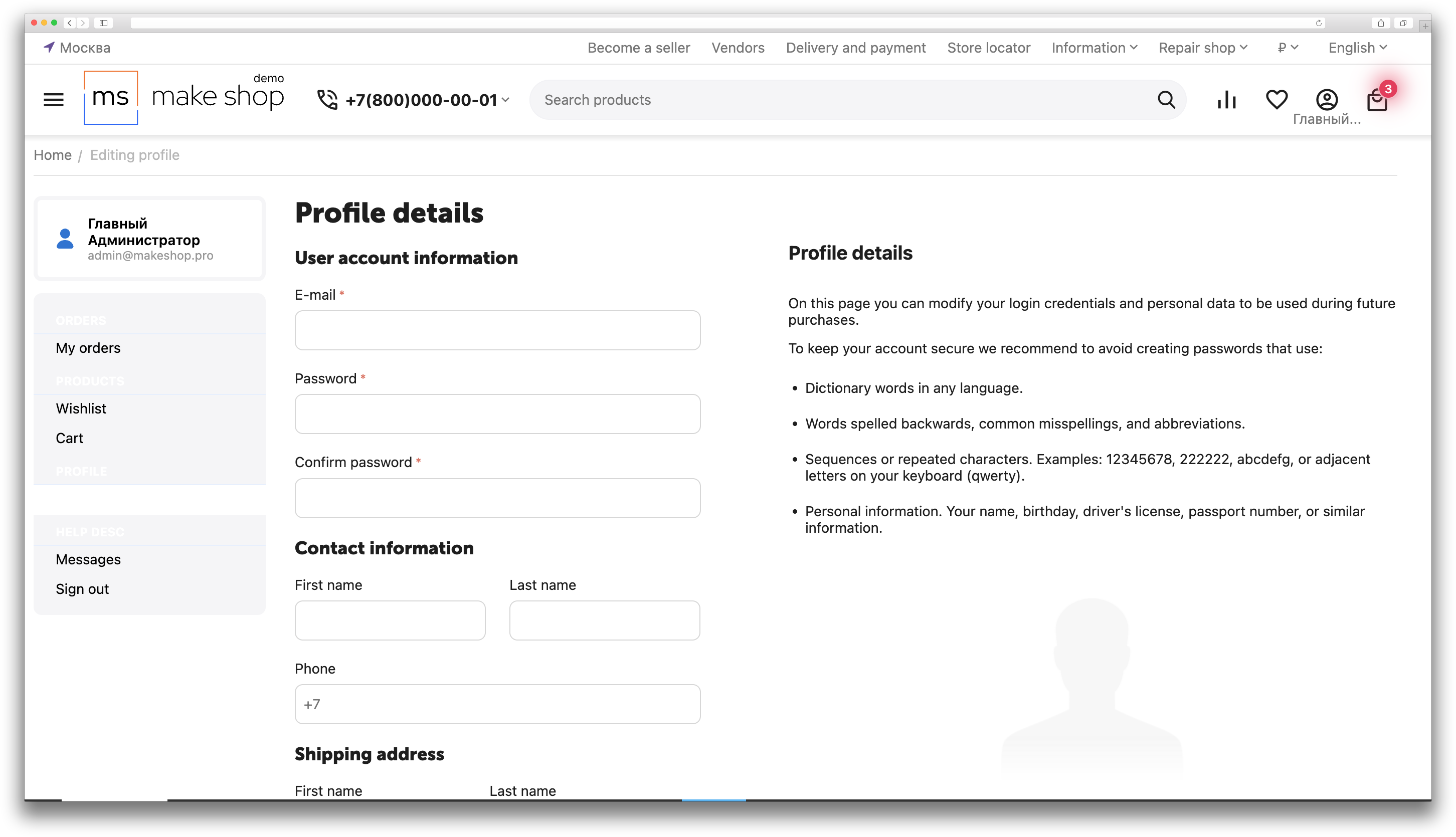
The add-on displays account sections on a separate page and combines standard and added links into configurable groups.
What it is for
Use it to make account navigation clearer for customers and manage it in one place.
Key features
- manage menu groups and items in the administration panel;
- ready presets for quickly adding items;
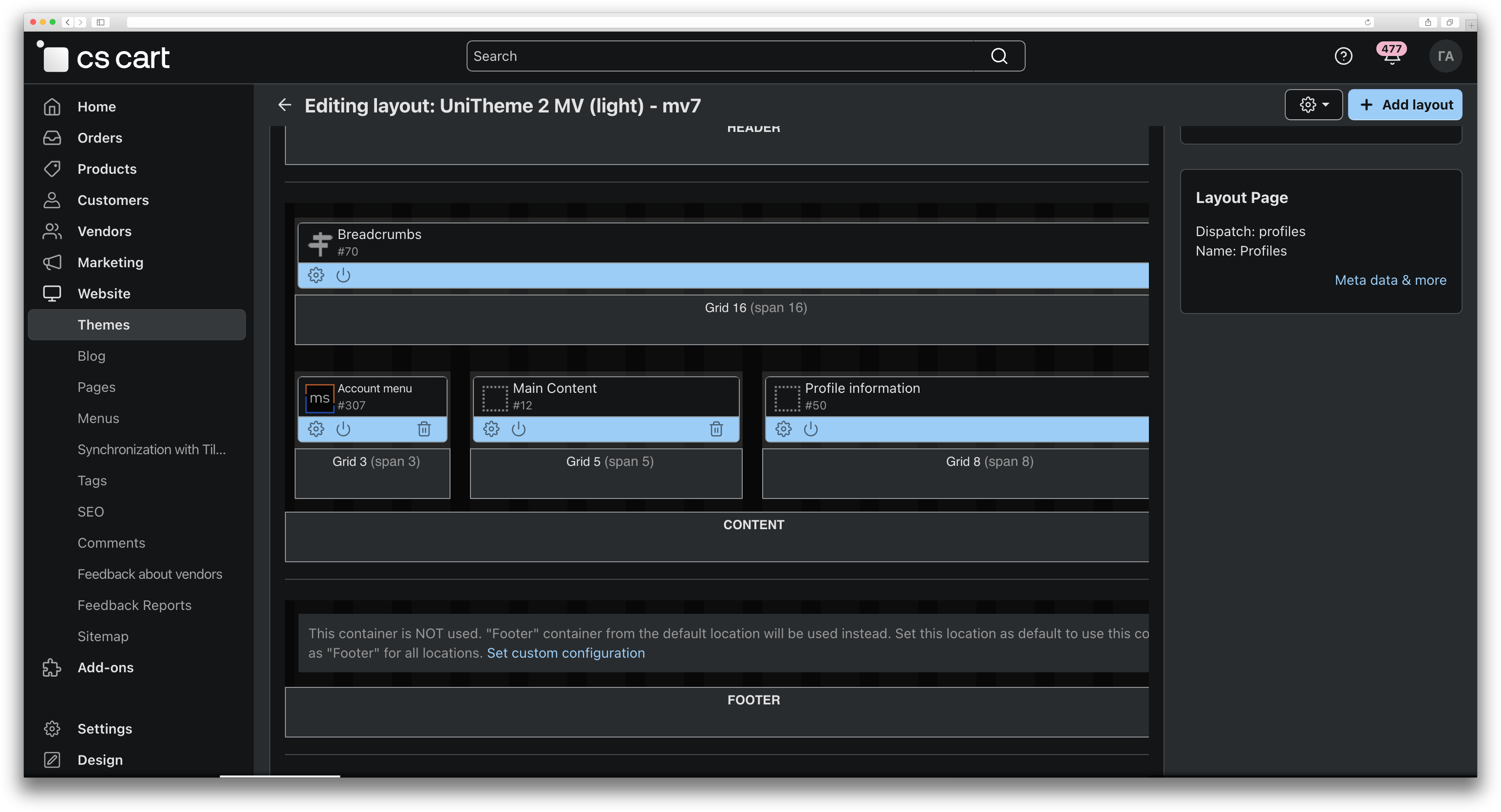
- a menu block for a layout;
- an option to open the profile page instead of the standard dropdown menu.
How it works
The administrator creates groups and items, sets their order and status, then places the add-on block in a layout. On the storefront, an authenticated customer sees active items grouped accordingly.
Have questions about the add-on?
- Store Builder
- Store Builder Ultimate
- Multi-Vendor
- Multi-Vendor Plus
- Multi-Vendor Ultimate
- Buyers
- English
- Русский
- 4.19.X
- 4.18.X
- 4.17.X
- 4.16.X
- 4.15.X
- 4.14.X
Installation
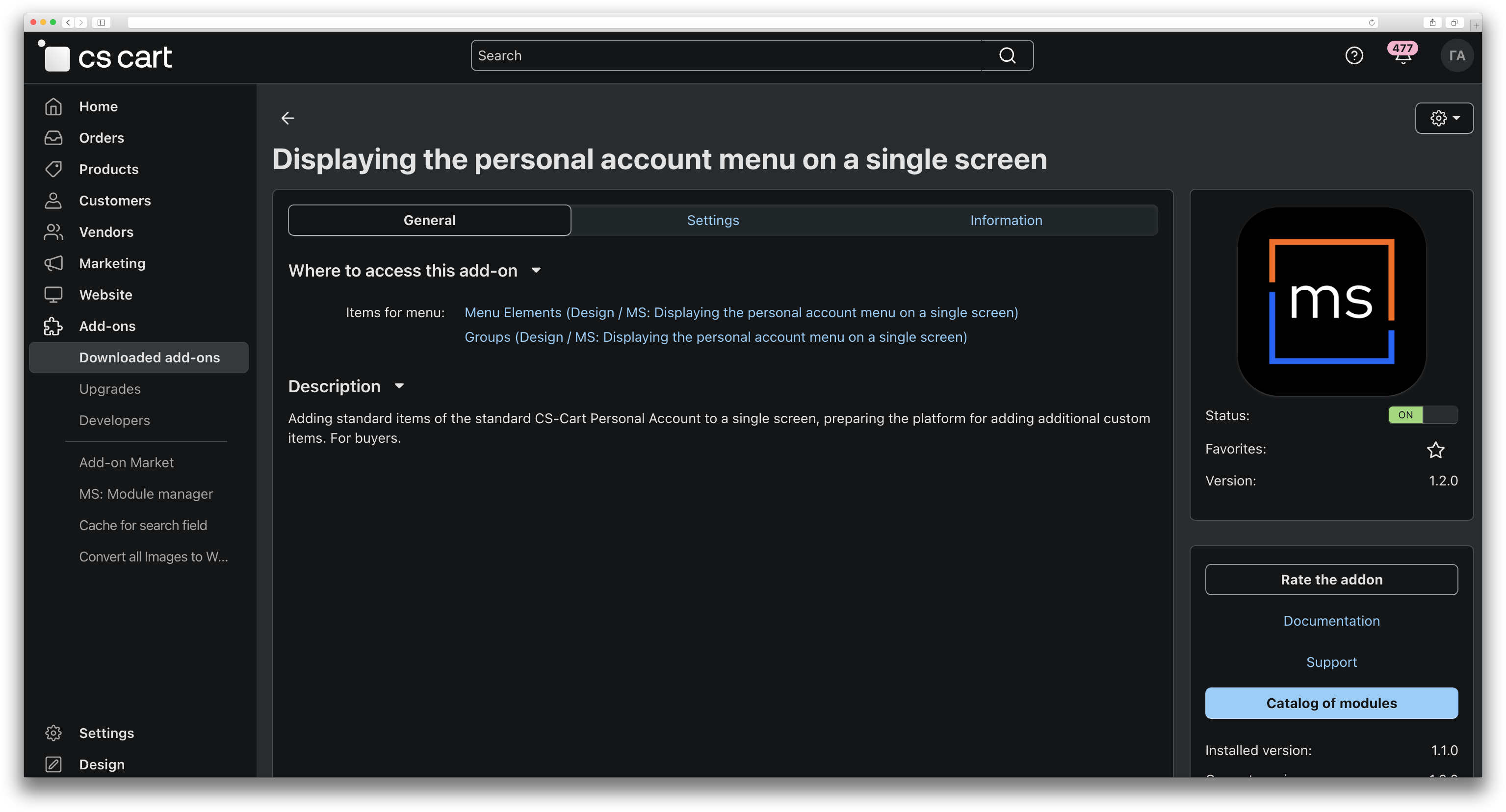
Install the add-on in the admin panel: Add-ons → Manage add-ons.
Add-on settings
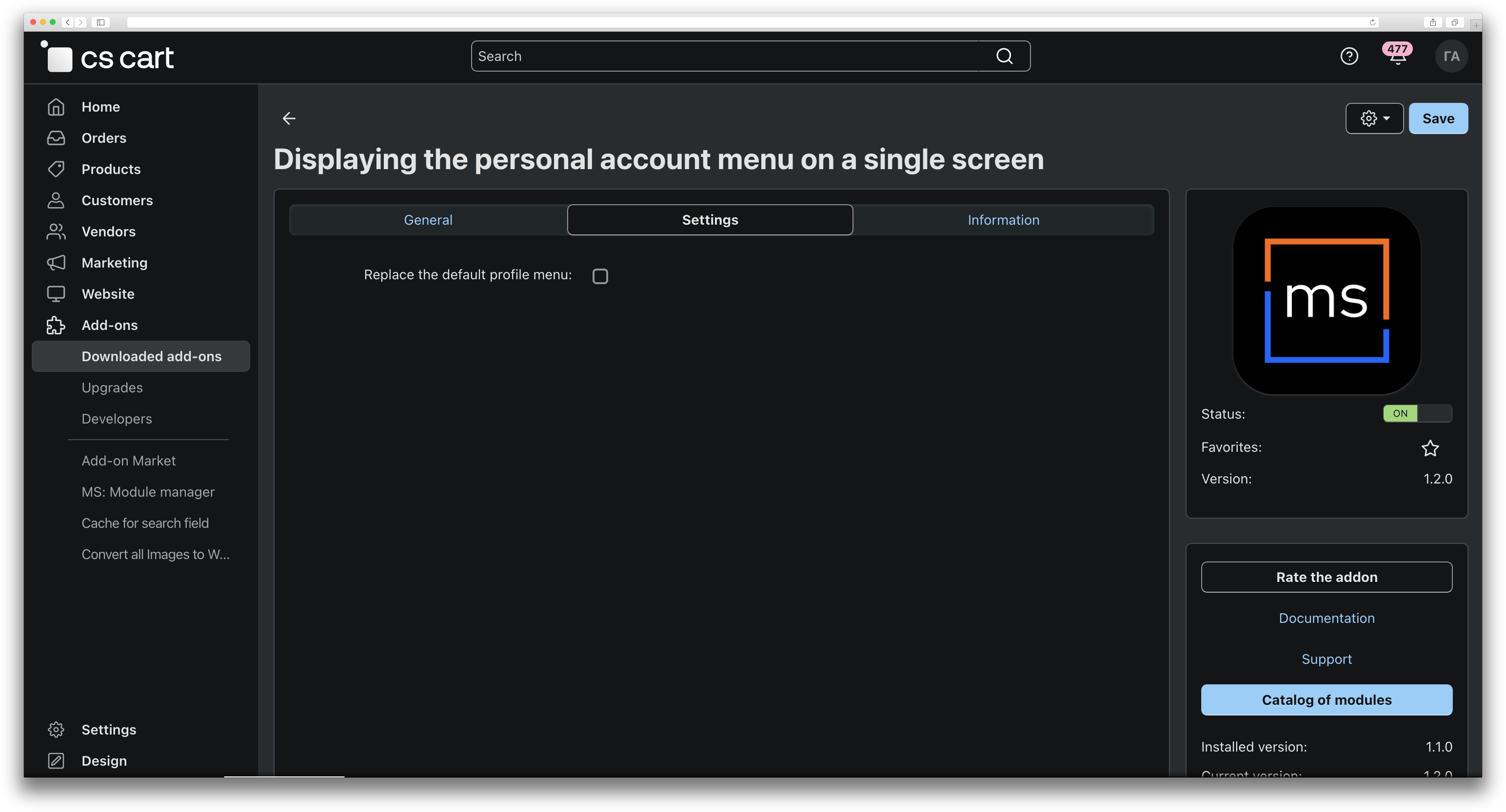
Open the add-on settings and enable “Replace the default profile menu” if needed. In this mode, when a customer clicks the profile icon in the storefront, they will be redirected to the profile page instead of seeing the standard dropdown menu.
Configure the personal account menu
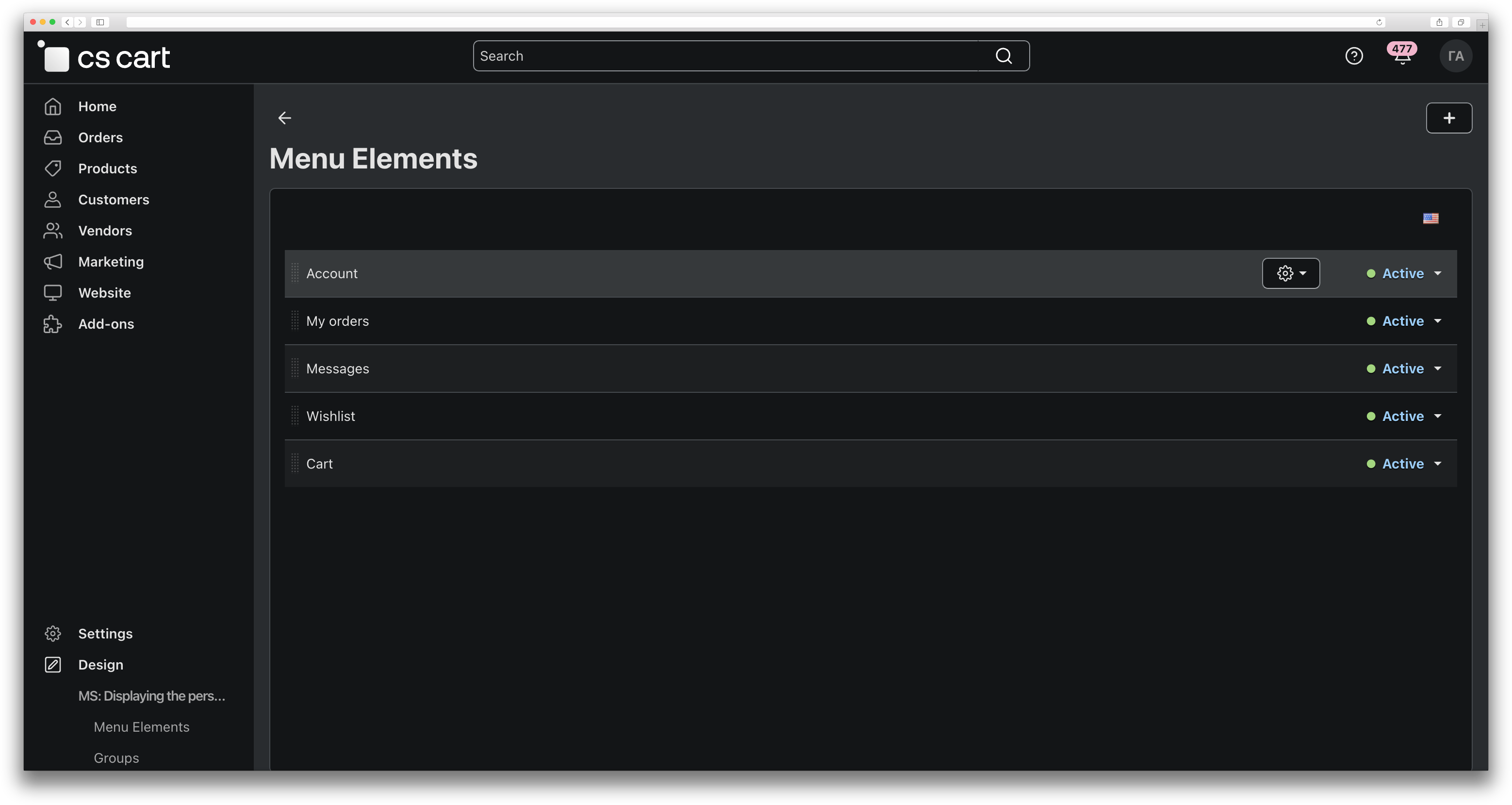
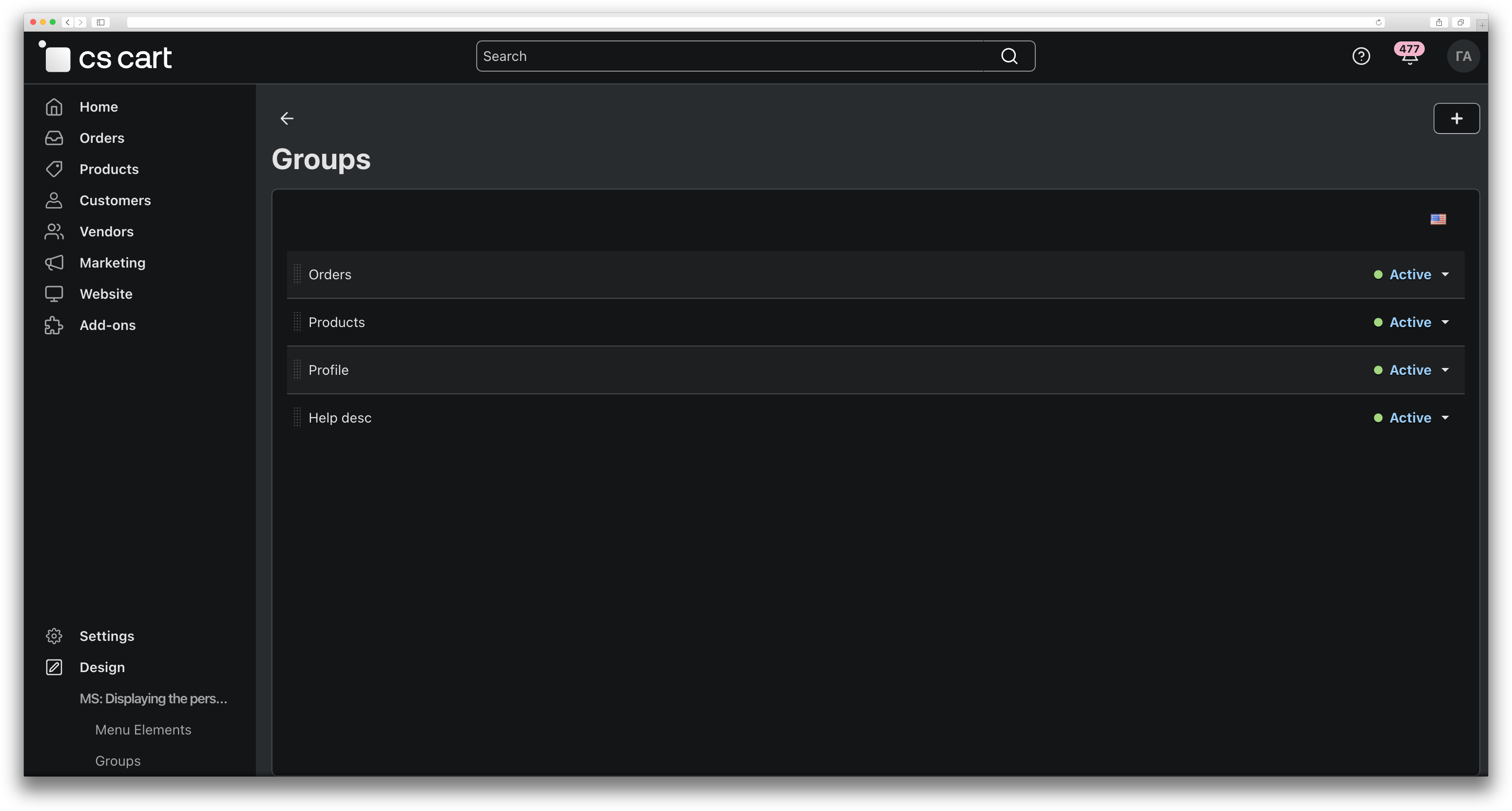
- Go to Design → MS: Displaying the personal account menu on a single screen.
- Create menu groups (Groups section).
- Add menu items and assign them to groups (Menu Elements section).
You can use ready-made item presets to speed up configuration (if available in the interface).
Place the block in a layout
- Go to Design → Layouts.
- Select the layout/container for the personal account page.
- Add the “MS: Displaying the personal account menu on a single screen” block.
Check the result
- Open the storefront and go to the personal account (as a logged-in customer).
- Make sure the configured groups and menu items are displayed.
Changelog
v1.3.4
31.08.2026
Fixes and changes:
- Moved the profile icon to the add-on's isolated directory and excluded core platform files from the release.
- Fixed saving group and menu item names, as well as bulk status updates.
- Updated the add-on to the current template and aligned it with CS-Cart compatibility standards.
v1.3.3
20.07.2026
Changes and improvements:
- Updated the add-on description and instructions; added localized materials and a logo.
v1.3.2
16.04.2026
Fixes and changes:
- Fixed incorrect display of the account menu.
- Fixed the add-on behavior when the Phone Authorization add-on is enabled.
v1.3.0
30.03.2026
Changes and improvements:
- Updated the add-on template.
v1.2.0
01.10.2025
New features and improvements:
- Added the My Organizations preset from the Invoicing add-on.
- Added a sign-in popup for guest users.
v1.1.0
20.09.2024
New features and improvements:
- Added a sign-out button to the account.
Fixes and changes:
- Fixed errors when editing groups and menu items.
v1.0.0
28.08.2024
New features and improvements:
- Initial release.
Here you can share your opinion and evaluate our work.
Your feedback helps us become better and offer you even better service.